Creating with Canva
If you're a Canva user, then you can directly import your designs from Canva into Playr. Each page in Canva is imported into Playr as an image on a newly created page.
Previously the Canva integration worked the other way around, where you exported your designs from Canva to Playr. Due to changes on the Canva platform, this has changed in March 2026.
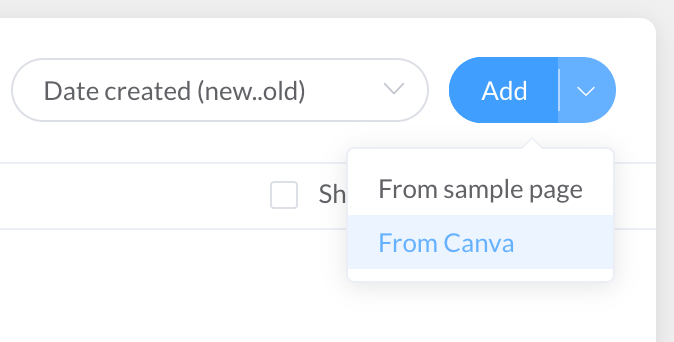
Here's how it works:
- On the dashboard, in the Pages panel, select Add > From Canva with the down arrow next the *Add**
- When you haven't connected your Canva account before, click the Add account to do so
- In the dropdown menu your Canva account; your designs are now shown as collections of pages of which they consist
- Double click your design to see all pages of the design
- Double click the page that you like to import
And that's it! A new page is now added to your dashboard. Note that the image on the page is a low-resolution placeholder at first. Withing a couple of seconds it will be replaced by a higher resolution version.
Selecting multiple pages
You can also import multiple pages from your design at once. Select multiple pages by dragging a rectangle around them with your mouse, or by holding the Ctrl-key (Windows or Linux) or ⌘-key (Mac) while clicking individual pages. Then select Use from the dropdown menu.
Delay in seeing your latest changes
Canva takes a couple of minutes to update its thumbnails. This applies both within Canva itself and to the thumbnails we receive from Canva. If you made changes to a page but still see the old thumbnail, don't worry: you can still select that page for import and the changes will come through in Playr. As mentioned above, Playr initially displays the thumbnail image, but this is replaced by the actual high-resolution version of your latest design after a few seconds.
Note that only newly added pages require you to wait for Canva to generate a thumbnail before you can select them for import in Playr.
Match your design's aspect ratio with your Playr pages
A page created from your Canva design will get the same aspect ratio as your Canva design. 99% of the time, your screens will have a 16:9 aspect ratio (or 9:16 in case of a portrait orientation). To easily integrate your Canva designs with your existing Playr pages, we recommend you match the aspect ratio of your design with the aspect ratios of your other pages in Playr.